Deploying a Spring Boot API to AWS Elastic Beanstalk with GitHub Actions
Recently, my software engineering graduate degree culminated with the completion of a capstone project, where students organized into teams to build a real software product with practical value. I had the pleasure of working on a team of excellent engineers to design and develop a Yelp-esque business reservation and management system. Given the time constraints of the semester, we scoped the project such that it was achievable within 3 months. We presented RestoHub, a restaurant-focused reservation management app. We took an experience-based approach with deciding our tech stack, where we picked frameworks and libraries that the team was already familiar and comfortable with – sticking with tried and tested tools. After all, we needed to deliver an MVP by the end of the semester.
Having deployed a Rails application on EC2 for a previous employer, I was already familiar with AWS and the vastness of its services. However, that experience was a few years in the past, and AWS has since expanded its services and offerings considerably. At the time this post is published, there are over 300 AWS offerings, and it can be pretty intimidating to truly understand what service checks all the boxes for your needs.
Given that our backend featured a simple CRUD Spring Boot REST API, we decided to leverage Elastic Beanstalk as the API server because it seemed like a great fit for our use case. The official Spring documentation also recommends the use of Elastic Beanstalk for deployment to AWS. In the preliminary stages after having set up the API on Elastic Beanstalk, I was manually deploying the jar files to the Beanstalk instance. Eventually though, we needed a way to automatically deploy our API directly to Elastic Beanstalk without the need for manual deployment. In other words, if there were any code changes and the build passed, the latest version of the RestoHub API should be available in the cloud. Of course, if the build failed, or if there were any test failures, the deployment should not occur in the cloud.
AWS offers CodePipeline as its CI/CD build platform, but since we were already leveraging GitHub Actions as our automation platform, we figured we’d just stick to it and find a way to make it work with our Elastic Beanstalk instance. This blog posts demonstrates how to deploy a Spring Boot API to Elastic Beanstalk with GitHub Actions.
To follow along with this blog post, the following prerequisites should already be in place in your setup:
-
A Spring Boot project with its source code pushed to GitHub.
-
Familiarity with GitHub Actions, or some working knowledge of how CI/CD pipelines are created. If not, the official documentation from GitHub is a fantastic resource to get started with Actions.
-
A Spring Boot API, or application that is functional locally. This tutorial uses Maven as a build tool, however the same patterns are applicable for Gradle.
-
An AWS account with the following resources:
- A functional Elastic Beanstalk environment and instance. If this has not already been done, I highly recommend this article detailing how to get started with Spring Boot on Elastic Beanstalk.
- Access to AWS IAM. We will be leveraging an IAM role specifically crafted for use with GitHub Actions.
1. Getting Your Java Build Tools Set Up
As mentioned previously, this tutorial uses the maven build tool. However if you’re using Gradle (or even Ant), the patterns should mostly be the same. You’d just need to change the build and test commands, if your application includes unit tests. By default, you can leverage the Spring application.properties configuration file. This file might contain environment-specific secrets or credentials, verbosity settings of your application logs, if any, as well as other database settings as an example. Here’s an example of an application.properties file that you might see for a Spring Boot maven project:
spring.datasource.url=DB_CONNECTION
spring.datasource.username=DB_USERNAME
spring.datasource.password=DB_PASSWORD
spring.datasource.driver-class-name=org.postgresql.Driver

#configure hibernate with postgresql
spring.jpa.properties.hibernate.dialect=org.hibernate.dialect.PostgreSQLDialect
spring.jpa.hibernate.ddl-auto=update
Your application properties may vary, but notice how the sensitive properties such as the datasource.url, datasource.username and datasource.password have placeholders instead of the actual values. This is a very crucial step, especally if you have sensitive credentials such as your database connections strings. More on this in Section 4. However for now, just ensure that you’re not going to be committing any sensitive information to a public git repository.
Ensure you can build your Spring Boot project by executing the appropriate build command. For maven, the command can be something like: mvn -B package --file pom.xml -Dspring.config.location=./path/to/your/application.properties. If you’re using an IDE such as IntelliJ IDEA, the appropriate build tooling should be available in the context menus.
2. Generating a GitHub Actions Workflow File
Once you’ve configured your build tooling to run, push the latest changes to your GitHub repository. We will now create a new GitHub Actions workflow.
-
Navigate to the landing page of your GitHub repository
-
Click on the “Actions” tab at the top menu bar. This will take you to the landing page of GitHub Actions
-
You may choose to click the “set up a workflow yourself” link, however GitHub is pretty good at understanding code context and will suggest appropriate workflows for your Spring project. For example, if you’re using Spring Boot with Maven, you should see a suggested workflow similar to “Java with Maven”. You can use their templates as a good starting point.
Once you follow through with the suggested workflow, you should notice a new directory called .github/workflows created under your repository root. It should contain a workflow.yml file. It should look something similar to the YAML code below. We will break down each section of the file.
name: Spring Boot Test, Package, Deploy to AWS

on:
  push:
    branches: [ "main" ]
  pull_request:
    branches: [ "main" ]

jobs:
  build:
    runs-on: ubuntu-latest
    steps:
      - uses: actions/checkout@v3
      - name: Set up JDK 17
        uses: actions/setup-java@v3
        with:
          java-version: '17'
          distribution: 'corretto'
          cache: maven
      - name: Build with Maven
        run: mvn -B package --file pom.xml -Dspring.config.location=./src/main/resources/application-prod.properties -P prod
The name parameter tells GitHub Actions the name of your workflow for visibility to the end user.
...
on:
  push:
    branches: [ "main" ]
  pull_request:
    branches: [ "main" ]
...
The above block of code tells GitHub Actions when to start runing your workflow. This can be interpreted as “run this particular workflow every time there is a commit pushed to the main branch, or if there is a Pull Request merged into the main branch”.
...
jobs:
  build:
    runs-on: ubuntu-latest
    steps:
      - uses: actions/checkout@v3
      - name: Set up JDK 17
        uses: actions/setup-java@v3
        with:
          java-version: '17'
          distribution: 'corretto'
          cache: maven
      - name: Build with Maven
        run: mvn -B package --file pom.xml -Dspring.config.location=./src/main/resources/application-prod.properties -P prod
...
This section instructs GitHub Actions’ machines on which jobs to run, what environments to run them in, as well as the names of the job. For example, the above code is specific to an Ubuntu instance. It sets up Java JDK 17 on that machine with the coretto distribution, and specifies a command to use maven to build the source code. Here is where you can specify your build tooling, as well as what specific paramters and commandd line arguments you would like to build your project with.
Once you create and commit your final workflow file, ensure that it works by monitoring the build status of GitHub Actions. You should see a tiny status indication on the main branch in your repository. If the build succeeds, you should see a green check mark. If it fails, you’ll see a red cross. Below is an image for reference.
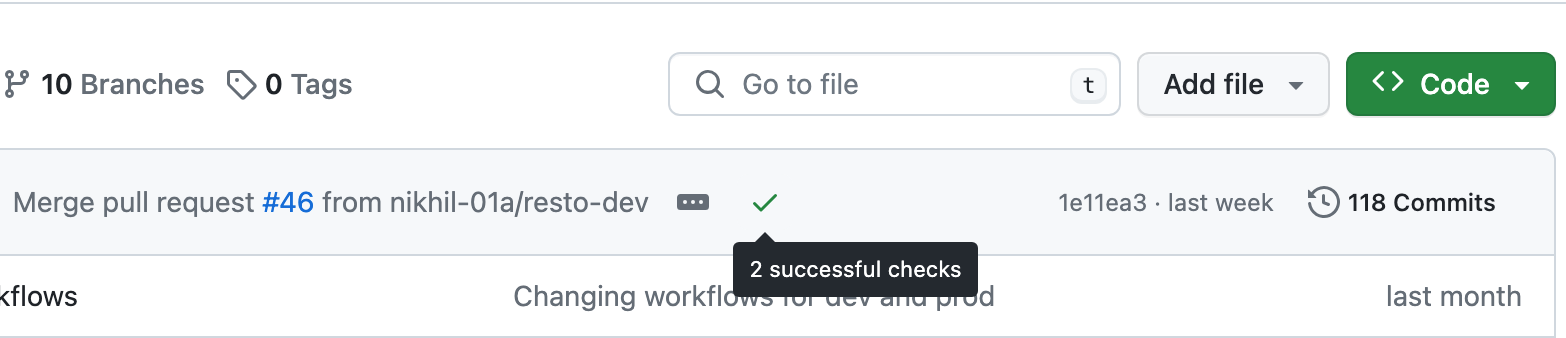
Please ensure that your build passes before moving on to the next step, taking all necessary steps to troubleshoot any failures. One troubleshooting tip is that YAML code is whitespace sensitive.
3. Creating an IAM user for GitHub Actions
Now that you’ve set up a GitHub Actions workflow, we will create a connection between the Actions workflow and AWS via an IAM user. Head on over to your AWS home page. If you’ve used IAM in the past, you can navigate to it directly from AWS. If this is your first time using IAM, use the search bar at the top of the AWS home page to search for “IAM” and navigate to its dashboard.
-
From the context menu on the left, navigate to “Users”
-
Click on “Create User”, and create a new user with a name like “github-actions”
-
On the next page, click on the “Attach policies directly” box. This will allow you to define what security and access policies this particular IAM role should have. Then, in the search box below, search for
AmazonS3FullAccessas well asAdministratorAccess-AWSElasticBeanstalk. Make sure to check each of these policies for your user. -
Review and create your new user
-
Finally, once the IAM user has been created successfully, make sure to save the generated Access Key ID and Secret Access Key. Additionally, if there is an option to download a CSV of the credentials, do that as well because you will not be able to access these secrets again! We will be adding these secrets to the GitHub repository to include in our workflow file.
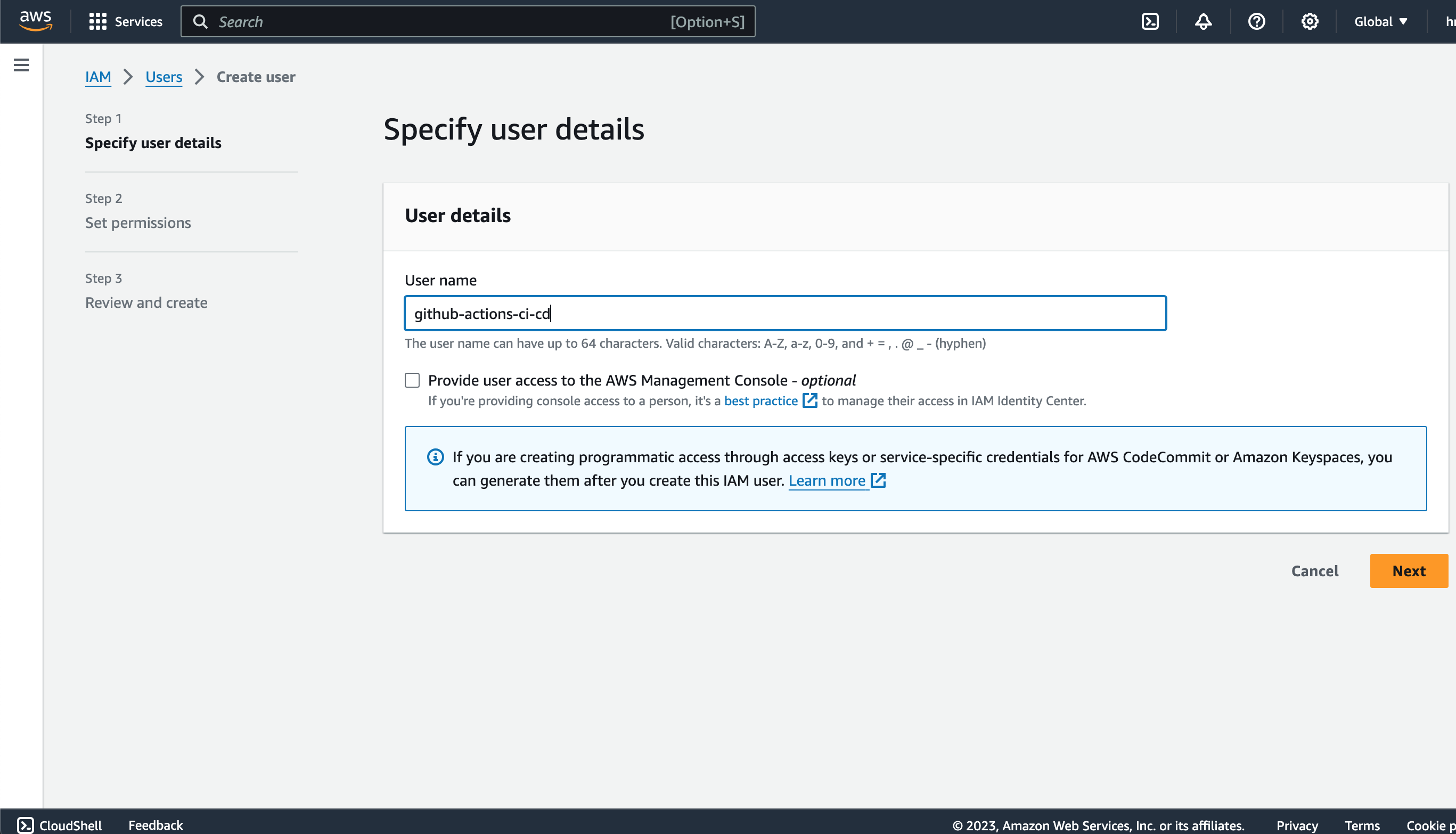
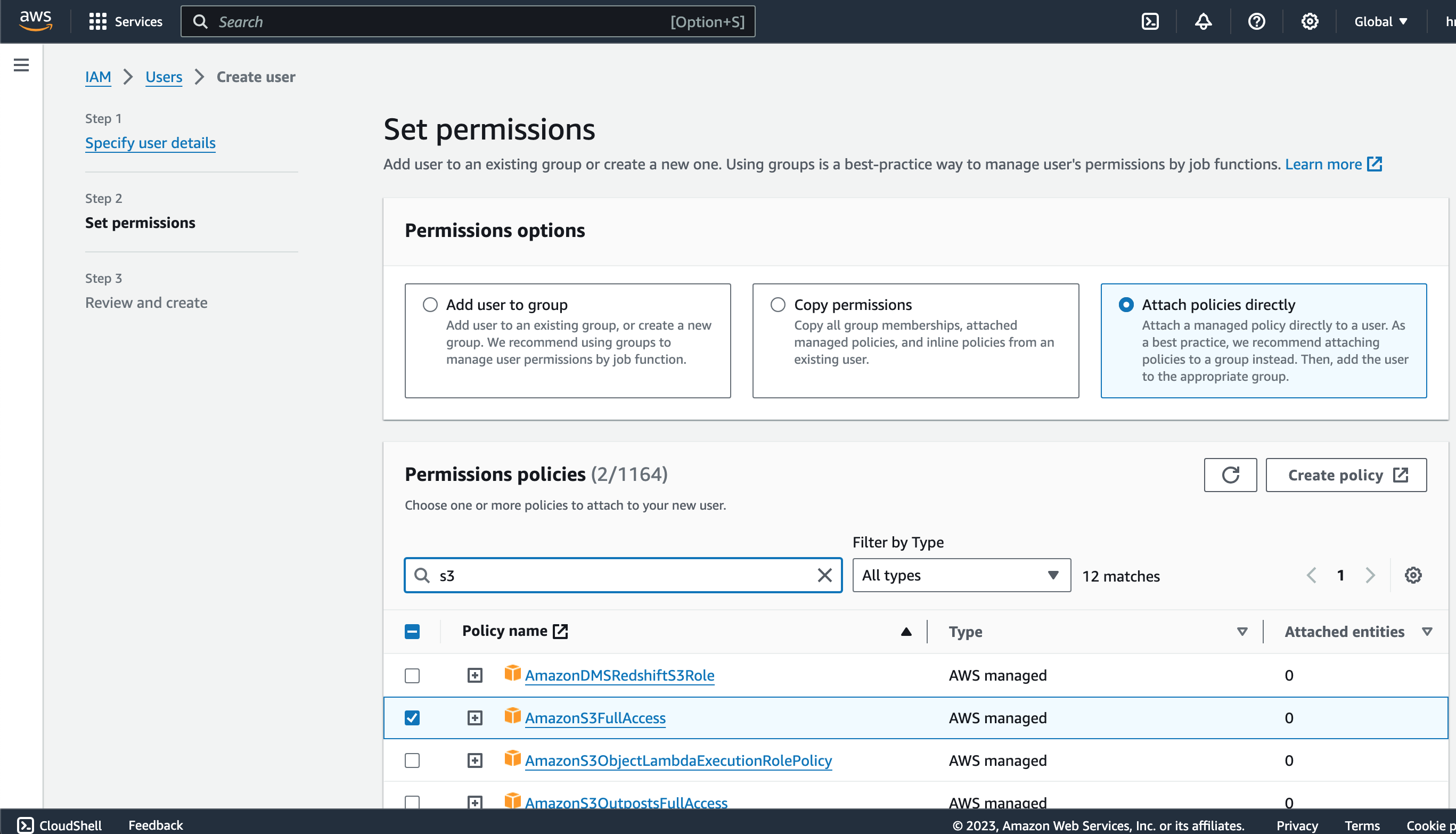
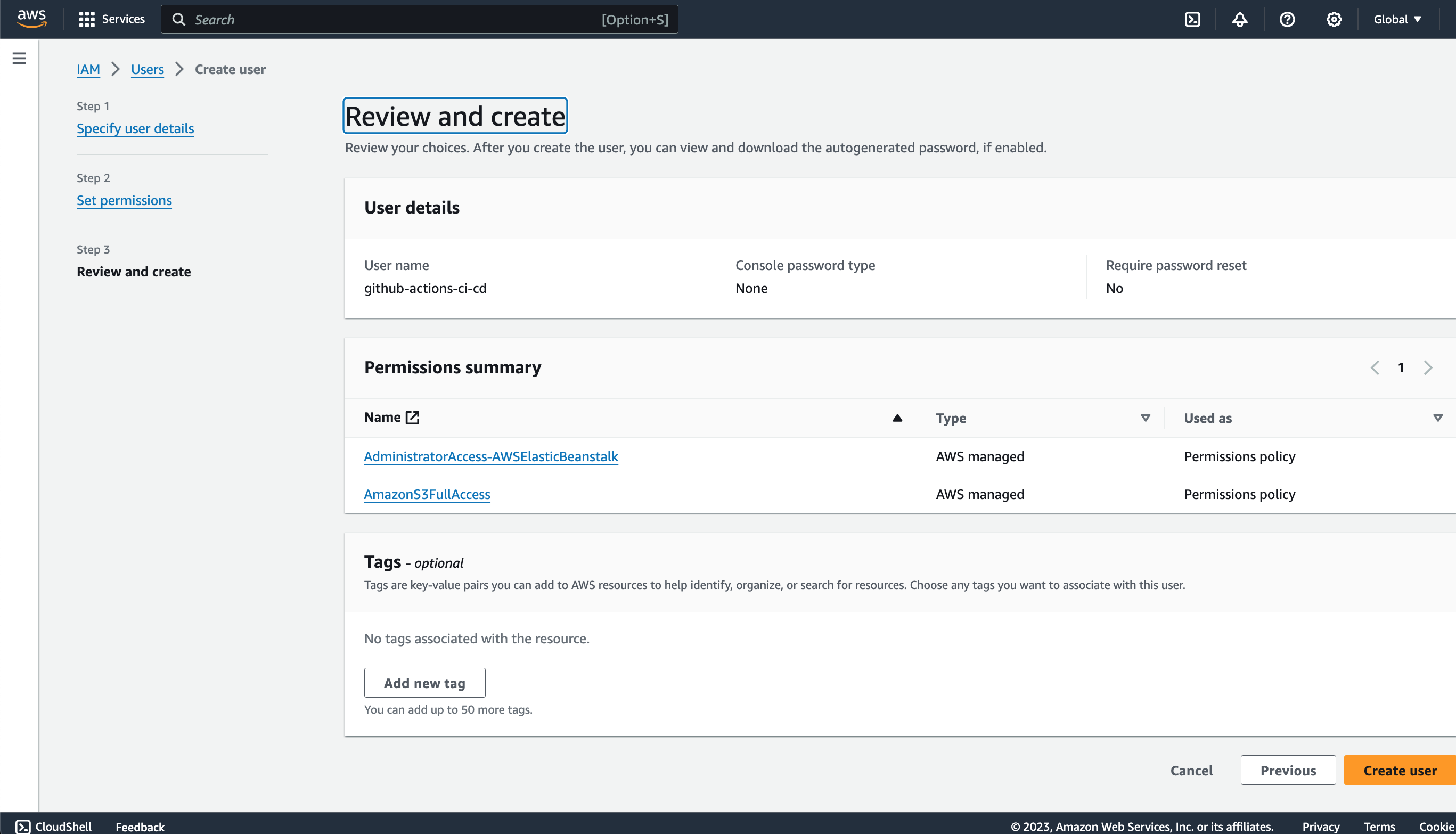
Note: if you run into issues with your IAM user after attaching the S3 and Elastic Beanstalk policies, consider granting AdministratorAccess to your IAM user. While this could expose security vulnerabilities with your pipeline, it can be a useful troubleshooting step if you run into errors or issues in the deployment steps further down.
4. Adding Application Secrets and Sensitive Environment Variables to GitHub
Now that we have our AWS IAM user set up, we will add the IAM access key and access key secret to the GitHub repository:
-
Navigate to the repository landing page and click on the “Settings” tab
-
Under the “Security” option in the sidebar, select “Secrets and Variables”, then “Codespaces”
-
Click on “New repository secret”
-
Enter the Names and Values of the secrets. Make sure to create meaningful names for the secrets, something like
IAM_ACCESS_KEYandIAM_ACCESS_KEY_SECRET -
If you have other sensitive application secrets, such as the Spring datasource strings, database connections strings or API keys, this is a good time to enter those as well.
-
Add and save the secrets.
This will allow you to access the secrets from the workflow file, while abstracting the values of the secrets from the public eye. For more information about repository secrets, check out the official documentation from GitHub.
5. Modifying the Workflow File
Now that we have our AWS IAM user set up, as well our secrets saved, we will make some modifications to our workflow file to enable automatically deploying our code changes to our Elastic Beanstalk instance. Again, please make sure that you have your Elastic Beanstalk instance set up and ready to go. You should have the access to the following Elastic Beanstalk information:
- application name of your Beanstalk Spring Boot application
- environment name of your Beanstalk instance
- region name of your instance. This is just the availability zone of your app.
We will be using the Action einaregilsson/beanstalk-deploy@v21 to trigger the Beanstalk deployment. The full, updated workflow file is shown below.
name: Spring Boot Test, Package, Deploy to AWS

on:
  push:
    branches: [ "main" ]
  pull_request:
    branches: [ "main" ]

jobs:
  build:
    runs-on: ubuntu-latest
    steps:
      - uses: actions/checkout@v3
      - name: Set up JDK 17
        uses: actions/setup-java@v3
        with:
          java-version: '17'
          distribution: 'corretto'
          cache: maven
      - name: Build with Maven
        run: mvn -B package --file pom.xml -Dspring.config.location=./src/main/resources/application-prod.properties -P prod
      - name: Upload RestoHub JAR  # this will upload the build .jar file and make it available for the deployment step
        uses: actions/upload-artifact@v3
        with:
          name: artifact
          path: ./target/Restohub-0.0.1-SNAPSHOT.jar # you'll need to change the name of your own jar file here
  deploy:
    needs: build
    name: Deploy to AWS EBS
    runs-on: ubuntu-latest
    steps:
      - name: Download RestoHub JAR # download the jar that was uploaded in the previous steps
        uses: actions/download-artifact@v2.1.1
        with:
          name: artifact
      - name: Deploy to ElasticBeanstalk
        uses: einaregilsson/beanstalk-deploy@v21
        with:
          aws_access_key: $ # pull the IAM_ACCESS_KEY from the saved repo secrets
          aws_secret_key: $ # pull the IAM_ACCESS_KEY_SECRET from the saved repo secrets
          application_name: restohub-api # change this to your own application name from Elastic Beanstalk
          environment_name: Restohub-api-environment # change this to your own environment name from Elastic Beanstalk
          version_label: $ # unique version number of your app, we are using the GitHub commit SHA as an identifier
          region: us-east-2 # change this to your Elastic Beanstalk region!
          deployment_package: Restohub-0.0.1-SNAPSHOT.jar # name of your generated jar file
Let’s review the changes to our workflow file.
...
- name: Upload RestoHub JAR  # this will upload the build .jar file and make it available for the deployment step
        uses: actions/upload-artifact@v3
        with:
          name: artifact
          path: ./target/Restohub-0.0.1-SNAPSHOT.jar # you'll need to change the name of your own jar file here
...
This snippet uses the “upload-artifact” Action to upload the generated JAR file to GitHub’s storage temporarily. This will allow the subsequent steps to reference this uploaded artifact for deployment to AWS.
...
deploy:
    needs: build
    name: Deploy to AWS EBS
    runs-on: ubuntu-latest
    steps:
      - name: Download RestoHub JAR # download the jar that was uploaded in the previous steps
        uses: actions/download-artifact@v2.1.1
        with:
          name: artifact
      - name: Deploy to ElasticBeanstalk
        uses: einaregilsson/beanstalk-deploy@v21
        with:
          aws_access_key: $ # pull the IAM_ACCESS_KEY from the saved repo secrets
          aws_secret_key: $ # pull the IAM_ACCESS_KEY_SECRET from the saved repo secrets
          application_name: restohub-api # change this to your own application name from Elastic Beanstalk
          environment_name: Restohub-api-environment # change this to your own environment name from Elastic Beanstalk
          version_label: $ # unique version number of your app, we are using the GitHub commit SHA as an identifier
          region: us-east-2 # change this to your Elastic Beanstalk region!
          deployment_package: Restohub-0.0.1-SNAPSHOT.jar # name of your generated jar file
In this new deploy step of the workflow, we are performing the following actions:
-
Download the artifact previously uploaded using the
download-artifactaction -
Deploy to Elastic Beanstalk using the
beanstalk-deployaction. Make sure to reference YOUR application specific properties here, such as the secrets, application and environment names, as well as the region and JAR file.
This should be all that’s needed to get your workflow file setup for deployment to Elastic Beanstalk.
6. Testing the Deployment to Elastic Beanstalk
Go ahead and commit these changes, ensuring again that the YAML formatting is correct. GitHub should kick off a new build from the main branch of your repository. You can monitor the build by clicking on the “Actions” tab on your repository, then navigating to the Workflow that you defined. You should be able to see a build log, indicating what steps are being completed in real time, and where the errors were, if any. If everything went smoothly, your app should be deployed to your Elastic Beanstalk instance successfully! You can verify this by heading over to your Beanstalk landing page and viewing the updated status of your app, such as when it was last updated and the version name. If the status is Green, you have been successful!
7. (Optional) Creating Environment-Specific Workflows
If your build step contains unit tests, or if you have separate environments like a development environment, an integration environment and a dedicated production environment, you might want to consider creating specific workflows for each of these environments. Additionally, if you have feature branches and have a main/master branch that contains all changes that make it to a specific environment, you might also want to consider creating some specific workflows for your branches. In our case, we are only ever deploying to Elastic Beanstalk from the main branch. However we are building and running our test suite on all other branches that there are code changes to.
Below is the full production.yml workflow that we used for our production AWS Elastic Beanstalk instance:
name: Spring Boot Test, Package, Deploy to AWS

on:
  push:
    branches: [ "main" ]
  pull_request:
    branches: [ "main" ]

jobs:
  build:
    runs-on: ubuntu-latest
    steps:
      - uses: actions/checkout@v3
      - name: Set up JDK 17
        uses: actions/setup-java@v3
        with:
          java-version: '17'
          distribution: 'corretto'
          cache: maven
      - name: Write DB Connection
        env:
          DB_CONNECTION: $
          DB_USERNAME: $
          DB_PASSWORD: $
        run: |
          import os
          with open('./src/main/resources/application-prod.properties', 'r') as file:
            filedata = file.read()
          filedata = filedata.replace('DB_CONNECTION', os.getenv('DB_CONNECTION'))
          filedata = filedata.replace('DB_USERNAME', os.getenv('DB_USERNAME'))
          filedata = filedata.replace('DB_PASSWORD', os.getenv('DB_PASSWORD'))
          with open('./src/main/resources/application-prod.properties', 'w') as file:
            file.write(filedata)
        shell: python
      - name: Build with Maven
        run: mvn -B package --file pom.xml -DskipTests -Dspring.config.location=./src/main/resources/application-prod.properties -P prod
      - name: Upload RestoHub JAR
        uses: actions/upload-artifact@v3
        with:
          name: artifact
          path: ./target/Restohub-0.0.1-SNAPSHOT.jar
  deploy:
    needs: build
    name: Deploy to AWS EBS
    runs-on: ubuntu-latest
    steps:
      - name: Download RestoHub JAR
        uses: actions/download-artifact@v2.1.1
        with:
          name: artifact
      - name: Deploy to ElasticBeanstalk
        uses: einaregilsson/beanstalk-deploy@v21
        with:
          aws_access_key: $
          aws_secret_key: $
          application_name: restohub-api
          environment_name: Restohub-api-environment
          version_label: $
          region: us-east-2
          deployment_package: Restohub-0.0.1-SNAPSHOT.jar
Remember when we said we’d come back to dealing with Spring application secrets and oter application-sensitive information? Well, this is how those become useful! Here we are saving all sensitive secrets and properties to the GitHub repository secrets. In the “Write DB Connection” step above, we are referencing our saved secrets to inject into the application.properties file here using some python scripting. We leverage GitHub Actions to dynamically fetch the DB_CONNECTION, DB_USERNAME and DB_PASSWORD strings, and replace them in our properties file. Also notice how we are skipping tests with the maven -DskipTests flag for our production workflow. All changes are already tested when pushed to other branches.
CI/CD enables a great level of automation for building, testing and deploying software, and GitHub Actions makes getting your feet wet with CI/CD very simple. With a wide range of user-created automations already publicly available, GitHub Actions allows users to greatly customize their own workflows. In this tutorial, we leveraged the einaregilsson/beanstalk-deploy@v21 workflow, as well as GitHub-provided automations such as actions/download-artifact@v2.1.1 and actions/upload-artifact@v3. We combined the use of GitHub and open-source to push a Spring Boot REST API to the public cloud on AWS. This reduces the manual overhead of having to manually copy over and deploy changes to our AWS Elastic Beanstalk instance, greatly increasing developer productivity by redirecting their focus on crafting robust and scalable APIs.